Aether: The AI Assistant Built for Researchers

Powerful coding and research capabilities, full-spectrum research workflow support, compatible with various models and providers, one-click integration with WeChat, QQ, and Feishu, ready to use out of the box — making research accessible.

View Documentation

Questions or suggestions, contact aethersci@163.com

Latest Updates

Latest Updates

Versionv0.6.0
Release Date
Release

Memory & Profile System, Model Visibility, Conversation Tree & Reading Mode Upgrades

Added Steer button and /steer command for redirecting AI mid-conversation; models now support per-device visibility toggling; conversation tree enhanced with revert/fork confirmation and node collapsing, AI replies folded by turn to focus on the latest; reading mode simplified, citation cards and preview toolbar refined; built-in persistent memory and profile system, added Wolfram MCP; web version supports custom deployment paths and idle auto-shutdown, fixed SSE zombie connections.

Versionv0.5.4
Release Date
Release

QQ Collaboration & Cron Scheduling, WeChat Infrastructure Rebuilt, Session & Update Experience Optimized

v0.5.4 brings several major improvements: new QQ bot platform support, joining WeChat and Feishu as the three collaboration channels; built-in cron scheduling system for periodic research tasks; WeChat collaboration fully rebuilt in pure TypeScript, removing Python dependencies, login diagnostics and quick reconnect significantly improved; session routing introduces scopeKey mechanism, Feishu and QQ each get independent session granularity, messages no longer cross-contaminate; model selection is now persisted across restarts; database lock file auto-creates parent directories, update pipeline supports Beta channel; sidebar and conversation tree scrolling, expansion, and button layout also optimized.

Versionv0.5.3
Release Date
Release

Conversation Tree Enabled by Default, Auto-Update Pipeline Fixed, Linux ARM64 Support

v0.5.3 major improvements: Conversation Tree now enabled by default, sub-agent sessions auto-filtered; auto-update pipeline fully fixed, local builds no longer skipped, web version restore verification more robust; added Linux ARM64 packaging and update support; project .aether directory auto-created, sidebar independently displays each workspace; knowledge base supports Qwen embedding model dropdown, help links switched to aether.aiphys.cn.

Versionv0.5.2
Release Date
Release

Session Preference Sync & File Scrolling Experience Optimized

v0.5.2 focused on session management and file browsing improvements: fixed infinite loop when switching session preferences, mobile preferences now synced to web; file tree and code editor scrolling more natural, no jitter on click and drag; WeChat file transfer supports stdin input, auto-reconnect after session expiry; Mac app startup and auto-rollback download process also fixed.

Versionv0.5.1
Release Date
Update

Project Switching, Session Title Format & Update Pipeline Adjustments

Added /p <path> project switching, index mode, and thinking level commands; tidied up Feishu and WeChat session title formats. Fixed web version auto-update pipeline.

Versionv0.5.0
Release Date
Release

Batch Session Management, Feishu & WeChat Collaboration Upgraded

v0.5.0 brings three major improvements: workspace now supports batch session selection and organization, multi-project and multi-experiment records can be archived in one go; Feishu and WeChat collaboration improved attachment delivery, file sending, and connection stability, mobile remote operations no longer drop or lag; desktop version fixed Windows startup anomaly, improved math formula rendering and night reading styles.

Versionv0.4.2
Release Date
Release

Feishu Collaboration Stability Improved, Installation Simplified

v0.4.2 focused on daily usage improvements: Feishu and WeChat remote collaboration connection stability significantly improved, added shorthand commands for faster operations; question panel in conversations supports collapse, no interruption during long tasks; offline installation and version update process simplified, desktop startup and Skill loading issues fixed.

Versionv0.4.0
Release Date
Release

Offline Updates No Longer Tedious, Feishu One-Click Integration

v0.4.0 optimized offline update experience: auto-detect installed version, skip redundant downloads, verify installer integrity, fixed Windows batch script issues; Feishu integration now embeds configuration steps in the connection dialog, added private chat and group @mention usage tips, ready to use on first connection.

Versionv0.3.1
Release Date
Release

Project Recovery & Switching Strengthened, WeChat Collaboration Links Sessions

v0.3.1 focused on polishing real-world "restore" and "switch" workflows: recent projects now filtered by actual session records and path prefixes, empty searches show root directory directly, directory selection and filtering logic streamlined; legacy database migration adds robust verification, archiving, and fallback repair, historical sessions no longer lost after upgrades; WeChat collaboration decouples connection lifecycle from dialog display, defaults to returning to the most recent active project, unified message headers and time display.

Versionv0.3.0
Release Date
Release

AI-Assisted Reading, App Updates & WeChat Collaboration Fully Upgraded

v0.3.0 adds AI-assisted reading quick entry and settings panel, read while asking questions in linked sessions; web version now supports online update check and installation, fixed Windows and Linux update scripts and version switching; project management adds recent project filtering and root directory verification, WeChat collaboration supports project session selection and hidden project recovery, connection stability improved.

Versionv0.2.2
Release Date
Release

Project List & Version Sync Optimized

Streamlined project list and recent usage display, project status clear at a glance and switching natural; improved version synchronization mechanism, reducing information inconsistency during use.

Versionv0.2.1
Release Date
Release

Upload, Login & Startup Experience Improved

Simplified login and registration, optimized Windows web version startup, fixed file upload to specified directory; right-click upload, batch drag-and-drop upload, and file change view stability also enhanced.

Versionv0.2.0
Release Date
Release

Batch Document Processing Stabilized

Batch PDF conversion and Markdown translation stability significantly improved, supports custom output directories, task recovery, and auto-retry after disconnection; project directory selection, recent project management, cross-platform browsing, and WeChat collaboration experience also improved.

Versionv0.1.0
Release Date
Release

Research Workflow Capabilities First Shaped

First integration of PDF reading, PDF-to-Markdown, multi-select drag-and-drop files, WeChat collaboration, and model switching into a unified workflow, giving Aether its initial complete research assistance workflow.

Quick Start

Follow three steps to install; platform-specific notes are below.

  1. 1

    Choose System

    Select Windows, macOS, or Linux.

  2. 2

    Download Installer

    Click download to get the installer for your platform.

  3. 3

    Run as Prompted

    Follow the platform instructions to complete first launch.

Recommended install method

Download after selecting system

Download the installer, follow the prompts, and let the setup handle the rest.

Easiest Windows x64

aether_windows_installer.bat

Double-click the downloaded file to run it. The installer will automatically fetch the latest version and complete the installation.

First run guide (must-read)

  1. 1

    Download `aether_windows_installer.bat` first, then double-click to run it.

    aether_windows_installer.bat
  2. 2

    If a security prompt appears, click "More info" and then "Run anyway".

  3. 3

    Default install location: `%USERPROFILE%\AppData\Local\Programs\aether`.

  4. 4

    After installation, shortcuts `Aether.lnk` will be created in the Start Menu and Desktop automatically.

  5. 5

    If shortcut creation fails, navigate to the default install path: `%USERPROFILE%\AppData\Local\Programs\aether` and double-click `Aether.bat` to run.

Additional notes
  • To install to a custom location, run `aether_windows_installer.bat --path ` from the command line, e.g. `aether_windows_installer.bat --path D:\Apps\aether` to install under `D:\Apps`.
  • If you prefer a manual install, download the ZIP package.
Easiest macOS Apple Silicon

aether_darwin_installer.command

Grant execution permission first, then run the installer. The system will automatically download and install the latest version.

First run guide (must-read)

  1. 1

    Download `aether_darwin_installer.command` first.

  2. 2

    Open the folder where `aether_darwin_installer.command` was downloaded (Safari defaults to "Downloads"), click "Go" in the top toolbar, select "Enclosing Folder" (or press `Command + Up`), then locate the folder in the parent directory, right-click it, and choose "Services > New Terminal at Folder".

  3. 3

    Copy the command below, paste it into the opened Terminal window, and press Enter to execute.

    chmod +x aether_darwin_installer.command
    ./aether_darwin_installer.command
  4. 4

    If macOS says it cannot open the file, go to "System Settings > Privacy & Security" to allow this run; then double-click `aether_darwin_installer.command` in the folder, or type `./aether_darwin_installer.command` in the Terminal window and press Enter.

  5. 5

    Default install location: `~/Applications/aether`.

  6. 6

    After installation, a shortcut `Aether.app` will be created in the Launchpad. Click to run.

  7. 7

    If shortcut creation fails, navigate to the default install path: `~/Applications/aether` and double-click `Aether.command` to run.

Additional notes
  • To install to a custom location, run `./aether_darwin_installer.command --path ` in Terminal, e.g. `./aether_darwin_installer.command --path /Applications/aether` to install under `/Applications`.
  • The installer handles the latest DMG and subsequent setup automatically — you generally don't need to open the `.dmg` manually.
  • If you prefer a manual install, download the DMG.
Easiest Linux x64

aether_linux_installer.sh

Grant execution permission first, then run the installer. The system will automatically download and install the latest version.

First run guide (must-read)

  1. 1

    Download `aether_linux_installer.sh` first.

  2. 2

    Open the folder where `aether_linux_installer.sh` was downloaded, right-click an empty area inside the folder, and select "Open in Terminal" or a similar option.

  3. 3

    Copy the command below, paste it into the opened Terminal window, and press Enter to execute.

    chmod +x aether_linux_installer.sh
    ./aether_linux_installer.sh
  4. 4

    Default install location: `$HOME/.local/share/applications/aether`.

  5. 5

    After installation, a shortcut `Aether.sh` will be created on the desktop. Right-click it and select "Run as executable" to launch.

  6. 6

    If shortcut creation fails, navigate to the default install path: `$HOME/.local/share/applications/aether`, right-click `Aether.sh`, and select "Run as executable".

Additional notes
  • To install to a custom location, run `./aether_linux_installer.sh --path ` in Terminal, e.g. `./aether_linux_installer.sh --path /opt/aether` to install under `/opt`.
  • If you prefer a manual install, download the ZIP package.
  • If you encounter OpenSSL-related issues during installation, please check the OpenSSL dependency guide.
Easiest Linux ARM64

aether_linux_arm64_installer.sh

Grant execution permission first, then run the installer. The system will automatically download and install the latest version.

First run guide (must-read)

  1. 1

    Download `aether_linux_arm64_installer.sh` first.

  2. 2

    Open the folder where `aether_linux_arm64_installer.sh` was downloaded, right-click an empty area inside the folder, and select "Open in Terminal" or a similar option.

  3. 3

    Copy the command below, paste it into the opened Terminal window, and press Enter to execute.

    chmod +x aether_linux_arm64_installer.sh
    ./aether_linux_arm64_installer.sh
  4. 4

    Default install location: `$HOME/.local/share/applications/aether`.

  5. 5

    After installation, you can create a shortcut `Aether.sh` on the desktop. Right-click it and select "Run as executable" to launch.

  6. 6

    If shortcut creation fails, navigate to the default install path: `$HOME/.local/share/applications/aether`, right-click `Aether.sh`, and select "Run as executable".

Additional notes
  • To install to a custom location, run `./aether_linux_arm64_installer.sh --path ` in Terminal, e.g. `./aether_linux_arm64_installer.sh --path /opt/aether` to install under `/opt`.
  • If you prefer a manual install, download the ZIP package.
  • If you encounter OpenSSL-related issues during installation, please check the OpenSSL dependency guide.
Next step: configuration

Need a model API?

Check commonly used model APIs, purchase links, base URLs, and recommended model names to configure Aether.

View Model API Guide

Aether Real Workflow Showcase

Browse WeChat collaboration and research data analysis workflows.

WeChat Collaboration
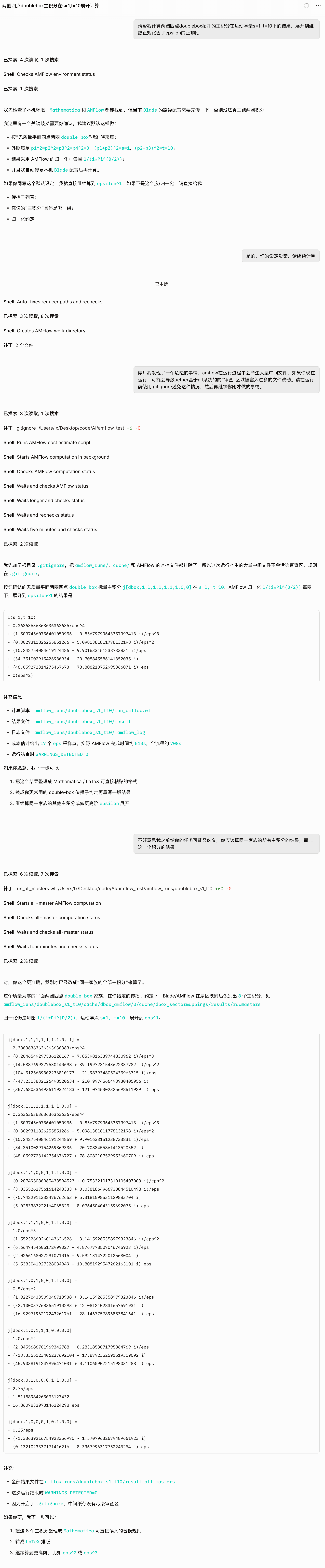
Full workflow screenshot of chatting with Aether on WeChat
Download First, Then Explore

Video Tutorials

Follow videos to quickly master Aether

Recommended order
01 02 03

Aether Download and Configuration

Start from scratch — complete the Aether download and basic configuration.

Open on Bilibili

Aether Core Features

Learn about Aether's core interaction methods and basic feature usage.

Open on Bilibili

Skill Concepts and Usage

Understand the Skill mechanism in depth, learn to invoke and customize research capabilities.

Open on Bilibili

About Aether

An AI research assistant built for science

01

What is Aether?

Aether is an AI research assistant built for scientific scenarios, powered by large language models, covering literature reading, PDF conversion, Markdown translation, project management, code execution, and multi-platform collaboration. It is not just a chat tool — it is an action-oriented assistant that can directly participate in research work.

02

Who is it for?

Researchers who frequently handle papers, notes, code, and project directories; also suited for students, developers, and potential contributors who want to quickly experience AI-assisted research workflows.

03

How does it differ from similar products?

Unlike general AI assistants, Aether emphasizes executable research workflows: AI-assisted reading, PDF and Markdown workflows, batch task queuing with recovery, project directory management, WeChat remote collaboration, and multi-model access without vendor lock-in.

Key Highlights

AI-Assisted Reading
Batch Document Processing
Project Directory Management
Provider-Free

Core Capabilities

Six core capabilities covering the full research workflow

CAP-01

Web + Electron, Ready to Use

Available as both a desktop app and browser version, adapting to local research, lightweight preview, and remote access scenarios. No complex development environment needed — download and start configuring and using right away.

CAP-02

Built-in Research Skills

Pre-packaged research-specific capabilities including paper search, literature management, and data analysis, which can be invoked continuously with project context, reducing tool-switching overhead.

CAP-03

AI Reading & Document Processing

Supports PDF reading, AI-assisted reading, PDF-to-Markdown conversion, Markdown translation, and batch task processing; current version has added reading mode settings, quick entry, default reading window position, and session linkage, making the read-and-ask workflow more complete, while retaining custom output directories, queue recovery, and auto-retry on disconnection.

CAP-04

Multi-Model, Multi-Provider

Compatible with MiniMax, Kimi, Qwen, and other providers and models, no single-provider lock-in, convenient for flexible switching by budget, speed, and quality.

CAP-05

Project Management & Terminal Capability

Full code writing, execution, and debugging workflow capability, plus recent project management, directory creation, directory filtering, and cross-platform directory browsing; current version continues strengthening installation and update pipelines — offline updates no longer depend on root directory version markers, web release version identifiers stay consistent, desktop version fixed startup blocking when existing production database present and Mac packaged version default Skills discovery issue, making installation, upgrading, and recovery more stable.

CAP-06

WeChat Collaboration

Connect WeChat and Feishu to chat with Aether and manage projects from your phone; v0.4.0 embeds Feishu platform configuration steps directly in the connection dialog, adds private chat and group @mention usage tips; v0.4.2 continues optimizing Feishu and chat bridge session flow, adds shorthand commands, unified /approval auto-accept policy, cross-platform file path support, and more stable reconnect handling, making remote collaboration smoother.

FAQ

Quick answers to common questions

Several built-in free models are included, and custom API access is also supported: simply configure base_url and api_key to use almost any model, and switch between them at any time.

We recommend downloading the installer directly from the homepage for your operating system — no development environment configuration needed, ready to use in 5 minutes.

Run this command in Terminal: xattr -cr ./aether ./Aether.command, then launch the app again.

Please refer to the DEBUG.md documentation. Common issues include: misconfigured API Key, network proxy settings, and insufficient model quota.

Missing chat history is usually caused by version number changes during development. Session records are stored in SQL format under the user directory. You can use Aether agent to search that folder, migrate old session records into your latest version's session database, then restart Aether. User directory locations: Windows: C:\Users\<username>\.local\share\opencode\; macOS: /Users/<username>/.local/share/opencode; Linux: /home/<username>/.local/share/opencode

Feel free to submit issues via GitHub Issues, or fork the repository and submit Pull Requests. See the project CONTRIBUTING guide for details.